Gear Reviews
Hands-on camera, lens, iPhone accessory, lighting, and editing software reviews by Ely Roberts. Browse the latest reviews below, or use the Reviews menu to explore a category.
Narrative Select and Edit Review: My AI Photo Workflow
Narrative Select and Edit helps me work through large shoots while keeping the final decisions in my hands.
Narrative Select and Edit helps me work through large shoots while keeping the final decisions in my hands. This walkthrough uses a real wedding project to show why I have continued using the software since 2021.
Originally published on YouTube Aug 9, 2026.
Why it fits my work
I want post-production to stay manageable alongside a busy shooting schedule and family life. After trying several editing and culling tools, Narrative was the best fit for my own workflow. That is a personal preference, not a controlled ranking of every competing product.
AI assessments support my decisions
In the example, the initial scan of almost 12,000 photographs took about 35 minutes. Focus and eye assessments, face grouping, and scene comparisons help me review the files. For a wedding, I still go through every image because an automated assessment may miss the creative reason I want to keep it.
Two passes, then editing
I first select the images I want, then make another pass to refine that selection. The video also shows training an editing profile from previous Lightroom work and sending the selected photographs into the editing workflow. I keep the final review and finishing adjustments part of the process.
Who this review is for
If selecting and editing large shoots is slowing you down, the video gives a detailed look at my actual workflow. Times and results depend on the project, computer, and how you work. I am a Narrative ambassador, as disclosed in the original video.
Watch on YouTube and view the original product links. Some shopping links in the original description may be affiliate links.

Wanderlust Videos Review: My Wedding Video Editing Workflow
Why I use Wanderlust Videos for outsourced wedding video editing, including my experience with collaboration, revisions, delivery, and workflow.
How I Found My Video Groove with WANDERLUST VIDEOS
By Ely Roberts
For the past 17 years, I’ve been immersed in the world of wedding photography—chasing light, capturing emotion, and telling love stories through still images. Photography has been my language, my livelihood, and my art. But something changed in the last couple of years. I started to feel the pull to add movement to those moments. To go beyond a single frame and capture the sounds, energy, and emotion of the day through film.
That’s how my journey into videography began.
Wanderlust Videos (Discount code shared in my original review (check current availability): ELYROBERTS10)
📽️ From Behind the Camera to the Editing Suite
My experience behind a video camera wasn’t new—I’ve worked as a video operator in various capacities over the years. But editing? That was foreign territory.
About three years ago, I decided to invest time in learning Final Cut Pro X. I dove deep into tutorials, practiced cutting footage, and slowly started piecing together elopement trailers and wedding highlight reels. And while I loved seeing the story unfold in motion, I quickly ran into a wall: time and technical limits.
As any photographer who’s dipped into video knows, editing is a whole different beast. Between running my photography business, editing galleries, managing bookings, and being present for my family, I just couldn’t keep up. I started to feel the weight of creative burnout, not because I didn’t love the process, but because I was trying to do it all.
🎬 Why I Added Videography in the First Place
Adding video to my services wasn’t just about curiosity—it was strategic. Couples today are looking for complete storytelling experiences. And offering both photography and cinematic films helped me stand out in a crowded market.
Elopement trailers, wedding highlight films, and full ceremony videos allow my clients to relive their day in a deeper way. It’s emotional, engaging, and shareable. Plus, it gave me a marketing edge—especially on social platforms like Instagram and YouTube, where video content is king.
But I needed help.
🌀 Enter Wanderlust Videos
Wanderlust Videos came highly recommended, and from the first project I handed over, I knew I had found a creative partner who just got it. Their team of editors isn’t just technically sharp—they’re storytellers. They understand pacing, emotion, music, and what makes a wedding day feel magical on screen.
But beyond the editing talent, what blew me away was their backend workflow. As a business owner juggling multiple projects, efficiency is everything. Wanderlust’s process is smooth, responsive, and built for creators like me. I can focus on filming and connecting with couples, knowing my footage is in good hands.
🛠️ Why Wanderlust Works for Me
- Professional-grade editing with a personal touch
- Time-saving workflows that keep my business moving
- Creative collaboration without the stress
- A seamless backend that takes care of revisions, delivery, and file management
💡 Is Wanderlust Right for You?
Whether you’re brand new to video or you’ve been editing for years and just need to offload the grind, Wanderlust might be exactly what you’re looking for. You don’t have to be an expert at everything—sometimes the best thing you can do for your creativity and your clients is to ask for help.
For me, partnering with Wanderlust wasn’t about giving up control—it was about growing as an artist and a business.
Examples from my original review

AI Photo Culling and Editing: My Wedding Workflow Notes
My early experience using AI tools for high-volume wedding photography, including culling 10,000 photos and editing with a personal Imagen profile.
Quick take: These notes document my early AI workflow in 2022. They focus on the practical experience of managing a large wedding shoot and using Imagen-assisted edits, while keeping final image selection and review in my hands.
Why I started using AI tools for weddings
In 2022, the volume of images from a wedding day made AI-assisted culling and editing especially interesting to me. On one eight-hour wedding, I photographed more than 7,000 frames with the Canon R3. Including my other camera and second photographer, the total exceeded 10,000.
These are notes from my early experience in 2022. They describe that workflow rather than a comparison of today’s software features or prices.
Culling a large wedding shoot
Culling is the process of selecting the images that deserve further editing. AI-assisted tools can help identify potential keepers, but the final selection still needs to tell the story of the day. On a recent wedding at the time, I narrowed about 10,000 images to 1,200 in a couple of hours.
Narrative Select and Aftershoot were on my list of culling tools to explore. My original notes did not include a completed comparison of them, so I am not ranking them here.
My early experience with Imagen
After about five months of testing Imagen, the biggest benefit was time saved on white balance and exposure. In my experience, it got those adjustments about 95% of the way there. I still went through every image before delivery.
Building a personal editing profile
My workflow involved using previously edited Lightroom images to teach a personal profile my editing style, then submitting catalog information for new edits. At the time, I used the color-editing option and a dated profile name, such as “Wedding 2022.MAY,” so I could keep track of changes to my look.
The edits typically came back in about 10–20 minutes in that early workflow. I then reviewed the results and made the final adjustments myself.
How I evaluated the cost
In my 2022 notes, editing 1,000 delivered images at five cents per image worked out to about $50 per wedding. That was the pricing example I used to weigh the time savings; it is not a current quote.
Where AI fit into my workflow
For me, the useful role of AI was getting a large set of images closer to a consistent starting point. It did not replace choosing the moments, refining the edits, or reviewing every photograph before a client received it.

Evoto AI Review: Batch Portrait Retouching in My Workflow
Evoto AI helps me retouch selected portraits in batches after editing in Lightroom.
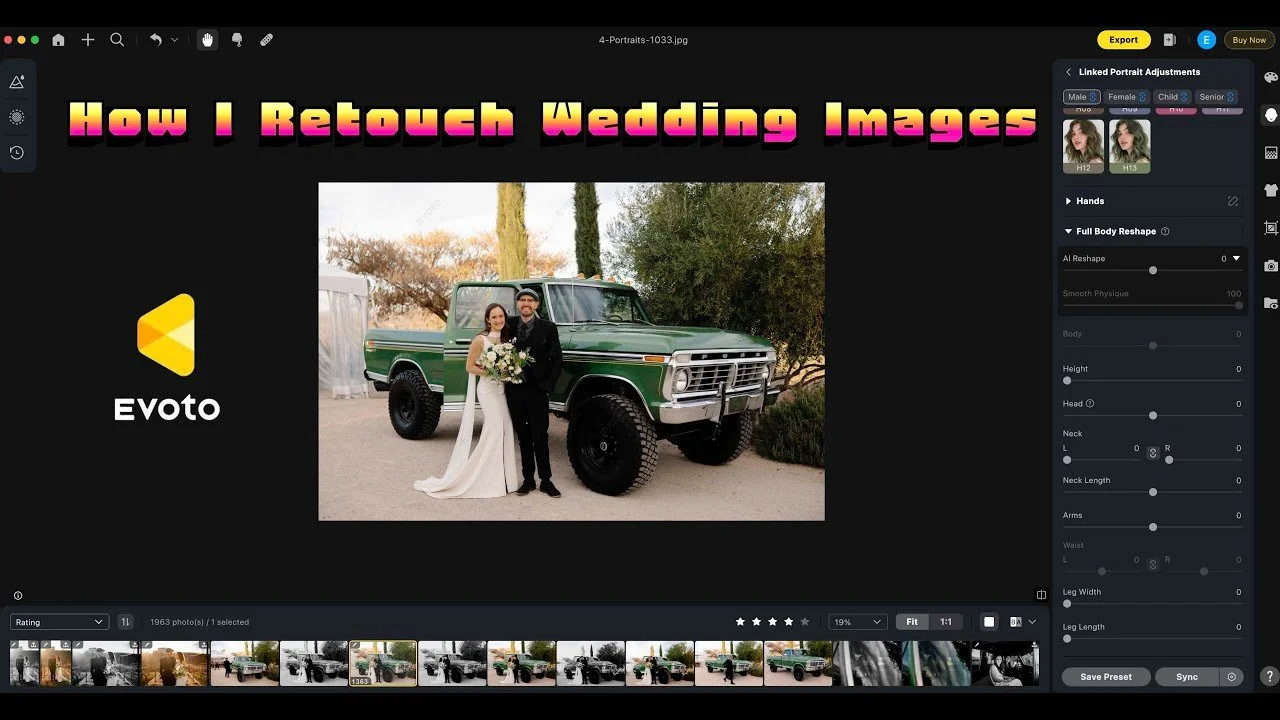
Evoto AI helps me retouch selected portraits in batches after editing in Lightroom. This walkthrough shows how I use it for stray hairs and small skin distractions.
Originally published on YouTube Mar 6, 2025.
Select the images that need retouching
I use Lightroom ratings and facial recognition to narrow down the photographs before exporting them for retouching. In the example, that separates the selected portraits from a much larger delivered gallery.
Keep the adjustments controlled
I demonstrate the tools I use most, then synchronize the adjustments and inspect the results. Automated retouching still needs a human check, especially where hair, faces, or backgrounds vary between images.
A focused finishing step
This is software coverage using a real wedding gallery, not a wedding film. The video explains why I use Evoto as a finishing step and how I export the results for delivery. Prices and credit offers mentioned in the original recording may have changed.
Watch on YouTube and view the original product links. Some shopping links in the original description may be affiliate links.

Dehancer Lite for Final Cut Pro Review: My Film-Style Workflow
Dehancer Lite gives me a practical starting point for film-style color in Final Cut Pro.
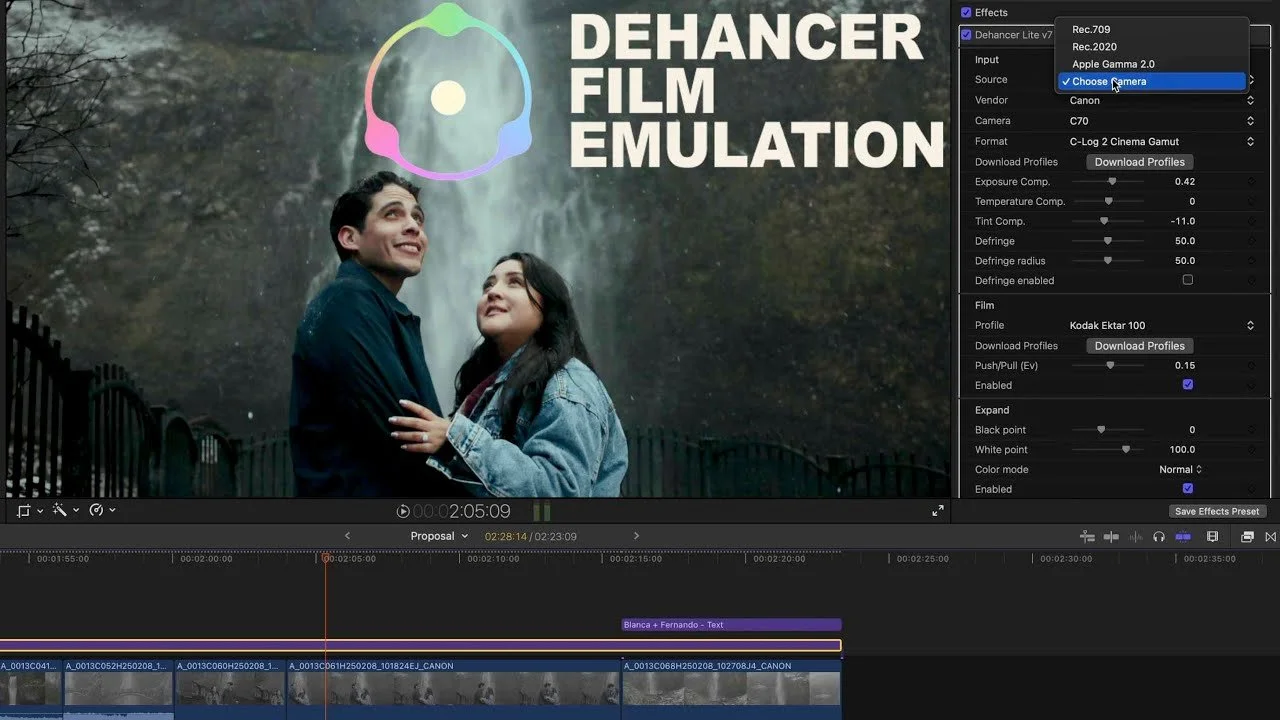
Dehancer Lite gives me a practical starting point for film-style color in Final Cut Pro. This review shows how I use it on Canon Log footage.
Originally published on YouTube Feb 11, 2025.
How I use the plugin
I demonstrate film profiles, color adjustments, grain, and other finishing controls using real clips. An adjustment layer lets me apply a consistent starting point, then refine the look for the footage.
Useful, with occasional hiccups
The plugin has helped me as I learn more about shooting and grading Log footage. I have also had occasions where reinstalling it resolved a display problem. I include that experience because reliability matters alongside the look.
Lite versus Pro
The video discusses why I was interested in testing Pro, including LUT export. The workflow demonstrated centers on the version I was using at the time. Check the current edition’s feature list before buying, since software packages change.
Watch on YouTube and view the original product links. Some shopping links in the original description may be affiliate links.